
PDF accessibility checklist sounds like a technical topic.
But for marketing teams, content teams, agencies, and B2B firms, it is really a simple question:
Can everyone who needs your guide actually use it?
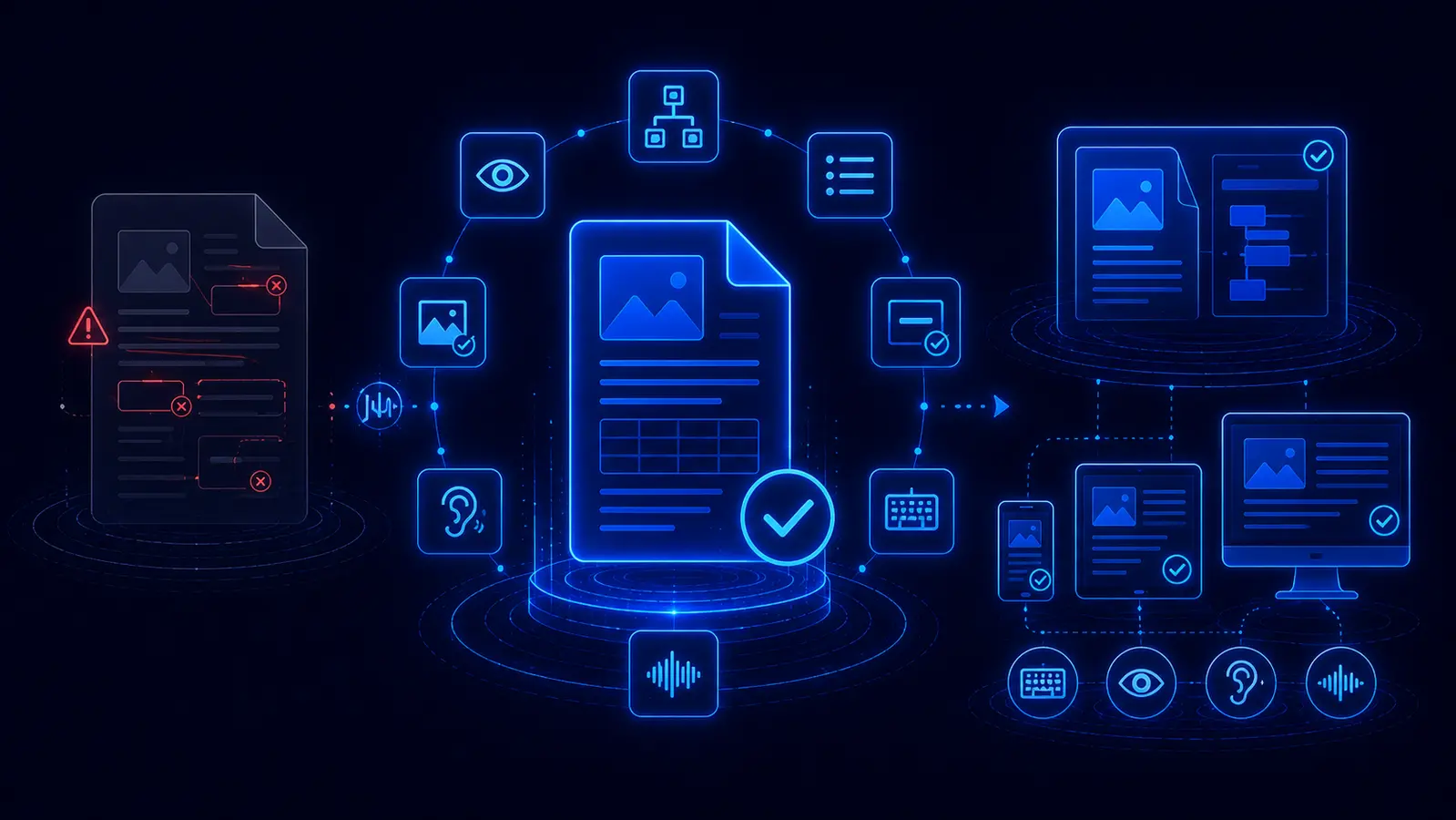
Your PDF can look polished. It can have a strong cover, a good layout, useful charts, and carefully approved copy.
But that does not mean it works for a screen reader user.
It does not mean the reading order makes sense.
It does not mean the form fields are labelled.
It does not mean the charts are understandable without sight.
And it does not mean someone opening the guide on a phone, zooming the text, or listening through assistive technology can get the same value from it.
That is the problem with many downloadable guides, reports, brochures, white papers, and resource PDFs.
They look finished, but they are not always usable.
This article gives you a practical PDF accessibility checklist you can use before publishing or promoting a guide. It is not legal advice, and it is not a full technical remediation manual. It is a marketing-friendly audit to help you spot the most common problems before they cost you reach, trust, and engagement.
Once the structure is clean, you can use the text to speech time calculator to estimate how long the PDF would take as audio.
Important: This article is for general content, accessibility, and marketing strategy information only. Accessibility requirements vary by jurisdiction, sector, organization type, and use case. If you need formal compliance advice, speak to a qualified accessibility specialist or legal adviser.
Why PDF accessibility gets missed
PDF accessibility often gets missed because teams review documents visually.
They open the guide. They check the design. They confirm the right logo is there. They make sure the copy is approved. They send it around internally.
But visual review does not answer the most important accessibility questions.
Can a screen reader understand the structure?
Can someone navigate by headings?
Can keyboard users move through links and form fields in a sensible order?
Can images, charts, and diagrams be understood without seeing them?
Is the document language set correctly?
Is the PDF made of real selectable text, or is it just a scan?
Official guidance from GOV.UK on publishing accessible documents, the NHS service manual on PDFs and non-HTML documents, Section508.gov, WCAG 2.2, and Adobe’s PDF accessibility documentation all point in the same direction.
Accessibility is not created by exporting a PDF and hoping for the best.
It has to be built into the source document, checked in the PDF, and tested in the real experience where people will use it.
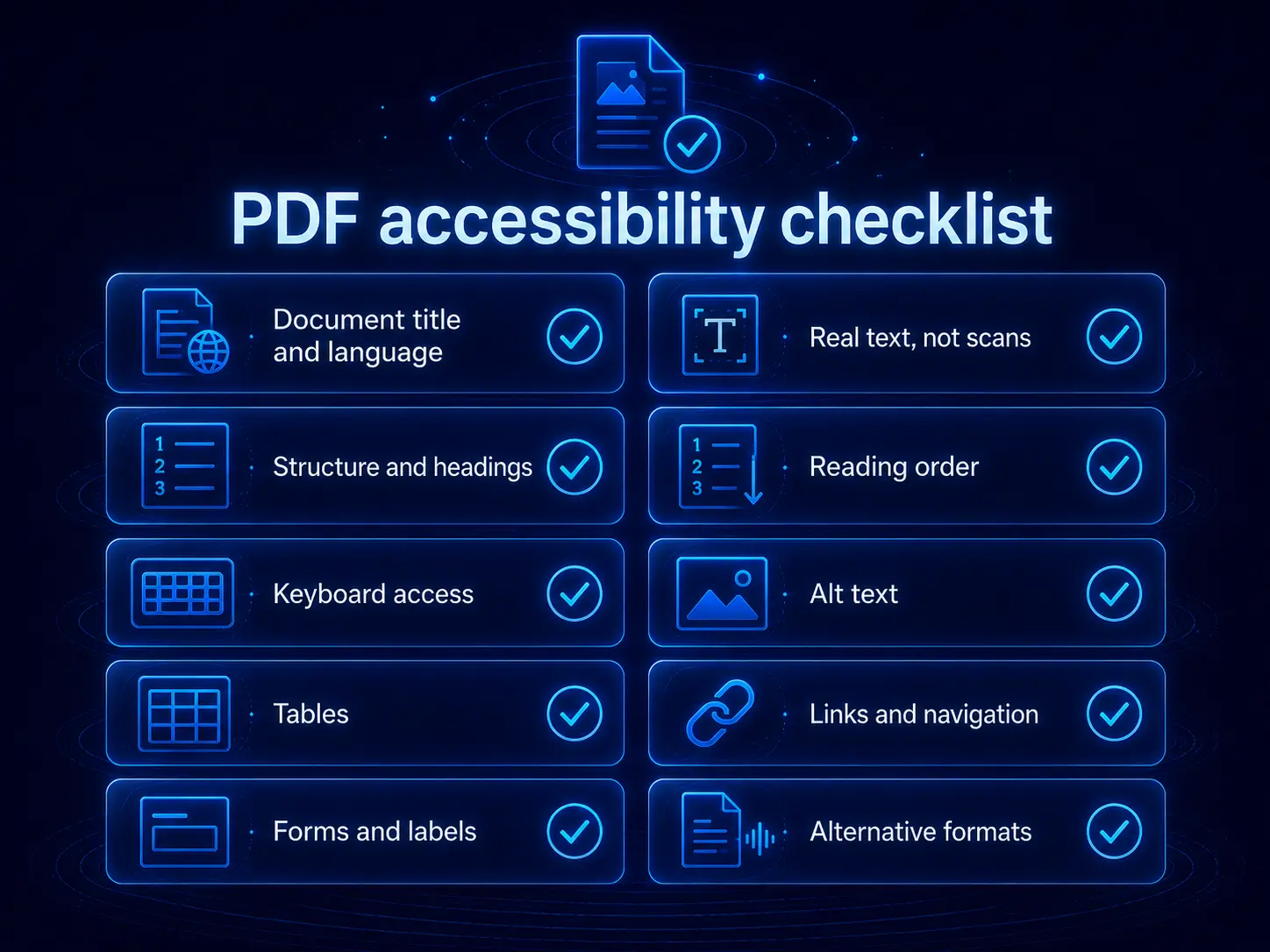
The PDF accessibility checklist
Use this checklist before publishing a guide, report, brochure, form, or downloadable resource.
You do not need to become a PDF remediation specialist overnight. But you do need to know where the main failure points are.
| Checklist item | Why it matters | Quick test | What to do |
|---|---|---|---|
| Document title and language | Screen readers use document metadata to announce the file properly and apply the right pronunciation rules. | Open document properties. Is there a meaningful title? Is the primary language set? | Add a clear title and set the document language before publishing. |
| Real text, not scanned pages | Image-only PDFs can be difficult to read, search, resize, or access with assistive technology. | Try selecting a paragraph. If you cannot select the text, it may be a scan. | Run OCR, correct errors, or regenerate the PDF from the original source file. |
| Structure and headings | Headings let people navigate the document and understand the hierarchy. | Can a screen reader or accessibility checker identify headings in the right order? | Use proper heading styles in the source file and check the exported PDF tags. |
| Reading order | Multi-column layouts, sidebars, charts, and callout boxes can be read in the wrong sequence. | Use a screen reader or Acrobat reading order view. Does it read naturally? | Fix reading order in the source file where possible, then repair tags in the PDF if needed. |
| Tab order and keyboard access | Keyboard users need predictable movement through links, buttons, and form fields. | Press Tab through the file. Does focus move logically and visibly? | Set tab order to follow document structure and check every interactive element. |
| Alt text for meaningful images | Images, charts, and diagrams need text alternatives when they carry meaning. | Check whether important images have useful alt text. | Add concise alt text. Mark decorative images as artefacts so they are skipped. |
| Tables | Tables need real structure, not just visual rows and columns. | Can a screen reader identify header cells and understand the table relationships? | Use proper table structures, define headers, and manually check complex tables. |
| Links and navigation | Vague links like “click here” are hard to understand out of context. | Tab through links. Do they make sense on their own? | Use descriptive link text and add bookmarks for longer documents. |
| Forms and labels | Unlabelled form fields can make a PDF form hard or impossible to complete. | Move through each field. Does the label or instruction get announced? | Add field labels, tooltips, instructions, and a logical focus order. |
| Readable visual presentation | Low contrast, tiny text, justified paragraphs, and busy layouts make content harder to use. | Zoom to 200%. Check contrast. Read it on a phone. | Improve font size, contrast, spacing, alignment, and layout simplicity. |
| Alternative formats | Some people need or prefer HTML, transcript, or audio instead of a static PDF. | If the PDF is hard to use, is there another way to consume the same information? | Offer HTML where possible, plus transcript and audio where useful. |
The key point: a PDF can pass some automated checks and still be hard to use. Automated tools are helpful, but they do not replace human review, keyboard testing, screen reader testing, and common sense.
The most common accessibility mistakes in marketing PDFs
Most marketing PDFs are not broken because someone did not care.
They are usually broken because the workflow was built around design approval, not user access.
Here are the problems that show up again and again.
1. The PDF is just a visual export
The file looks finished, but the structure underneath is weak or missing.
That means the PDF may not have proper tags, headings, reading order, or navigation. It may look fine to a sighted reviewer and still be confusing to someone using assistive technology.
2. Headings are styled visually, not structurally
A designer may make text large and bold, but that does not automatically make it a real heading.
Assistive technology depends on structure. If the document does not have proper heading tags, people cannot easily jump between sections or understand the hierarchy.
3. Charts and diagrams are not explained
Charts are common in guides, reports, and research PDFs.
But if the insight only appears as an image, some readers may miss the meaning entirely.
A good chart needs a clear surrounding explanation, useful alt text where appropriate, and sometimes a data table or summary.
4. Forms are treated as design elements
A form field is not just a box on a page.
It needs a label. It needs instructions. It needs a sensible tab order. It needs to be understandable when read aloud by assistive technology.
5. Long PDFs have no useful navigation
A 4-page PDF may not need much navigation.
A 32-page guide does.
Bookmarks, descriptive links, clear headings, and a logical table of contents can make a long resource much easier to use.
6. The team never tests it like a user
The easiest test is also the one many teams skip.
Open the PDF on a phone.
Try navigating it with a keyboard.
Try selecting the text.
Use a screen reader for a basic check.
If the guide is important enough to publish, it is important enough to test.
How to fix PDF accessibility issues efficiently
The best fix is usually not to patch every problem at the end.
The best fix is to build accessibility into the source file before export.
The practical workflow looks like this:
- Fix the source document first.
- Export the PDF properly.
- Check and repair the PDF where needed.
- Validate with tools.
- Test with real users or assistive technology.
- Add HTML, transcript, and audio alternatives for important resources.
If the source is Microsoft Word
Start with Microsoft’s accessibility workflow. Use proper heading styles, add alt text, create real lists and tables, check reading order, and run the Microsoft Accessibility Checker before saving as PDF.
Then test the exported PDF. Do not assume the export worked perfectly.
If the source is Google Docs
Google Docs has guidance for making documents more accessible, including headings, alt text, and screen reader support.
If your team uses Google Workspace heavily, a tool such as Grackle Docs may help with checks and tagged PDF export.
If only the PDF exists
If the original design file or Word document is gone, you may need to remediate the PDF directly.
Adobe Acrobat Pro is one of the most common tools for checking tags, reading order, document title, language, tab order, alt text, and form fields.
But be realistic.
If the PDF is long, complex, old, scanned, or heavily designed, remediation can take real work.
In those cases, it may be better to create an accessible HTML page and offer the PDF as a secondary download, instead of relying on the PDF as the main experience.
Tools that make the audit practical
You do not need every tool below. Pick the workflow that matches how your team creates documents.
| Tool | Best for | Use it for |
|---|---|---|
| Microsoft Accessibility Checker | Teams creating PDFs from Word or PowerPoint | Fixing issues before export |
| Google Docs accessibility features | Collaborative drafting in Google Workspace | Headings, alt text, screen reader support |
| Adobe Acrobat Pro | PDF checking and remediation | Tags, reading order, language, forms, alt text |
| veraPDF | PDF/UA validation | Machine validation and reporting |
| PDF4WCAG | Web-based PDF accessibility checking | Multi-standard PDF checks |
| NVDA | Screen reader testing on Windows | Checking real reading experience |
| VoiceOver | Testing on Apple devices | Checking Mac and iPhone user experience |
| Chrome Lighthouse and DevTools | HTML alternative pages and embedded players | Testing the web page around the PDF |
One useful rule:
Use automated tools to find problems. Use human testing to understand the experience.
A checker can tell you that something is missing. It cannot always tell you whether the guide is clear, easy, or useful.
Should you replace the PDF with HTML?
Sometimes, yes.
Especially if the PDF is being used as the main on-screen reading experience.
GOV.UK says new PDFs should often be treated as a last resort, and the NHS service manual also explains why HTML is usually better for content that people need to read and use online.
That does not mean PDFs are useless.
PDFs are still useful for:
- Printing
- Formal reports
- Offline reading
- Archiving
- Sales enablement
- Documents where exact layout matters
- Resources people need to save and share internally
The mistake is not using a PDF.
The mistake is forcing the PDF to be the only way to access the content.
Want the wider mobile argument?
If your PDF also needs to work better on phones, read our guide on why PDFs fail on mobile and exclude buyers.
Where audio and transcripts fit
Audio is not a magic accessibility fix.
It does not replace the need for proper structure, readable text, alt text, labels, or accessible HTML.
But audio can be a useful alternative format.
GOV.UK’s guidance on accessible communication formats includes audio as a useful format for some users, including people with visual impairments, learning disabilities, literacy difficulties, and co-ordination difficulties.
That matters for marketing guides and reports because many people do not want to sit and read a long PDF.
Some people want to listen while traveling.
Some people want to listen while working.
Some people find listening less tiring than reading.
Some people want a transcript so they can scan, search, quote, or revisit the content later.
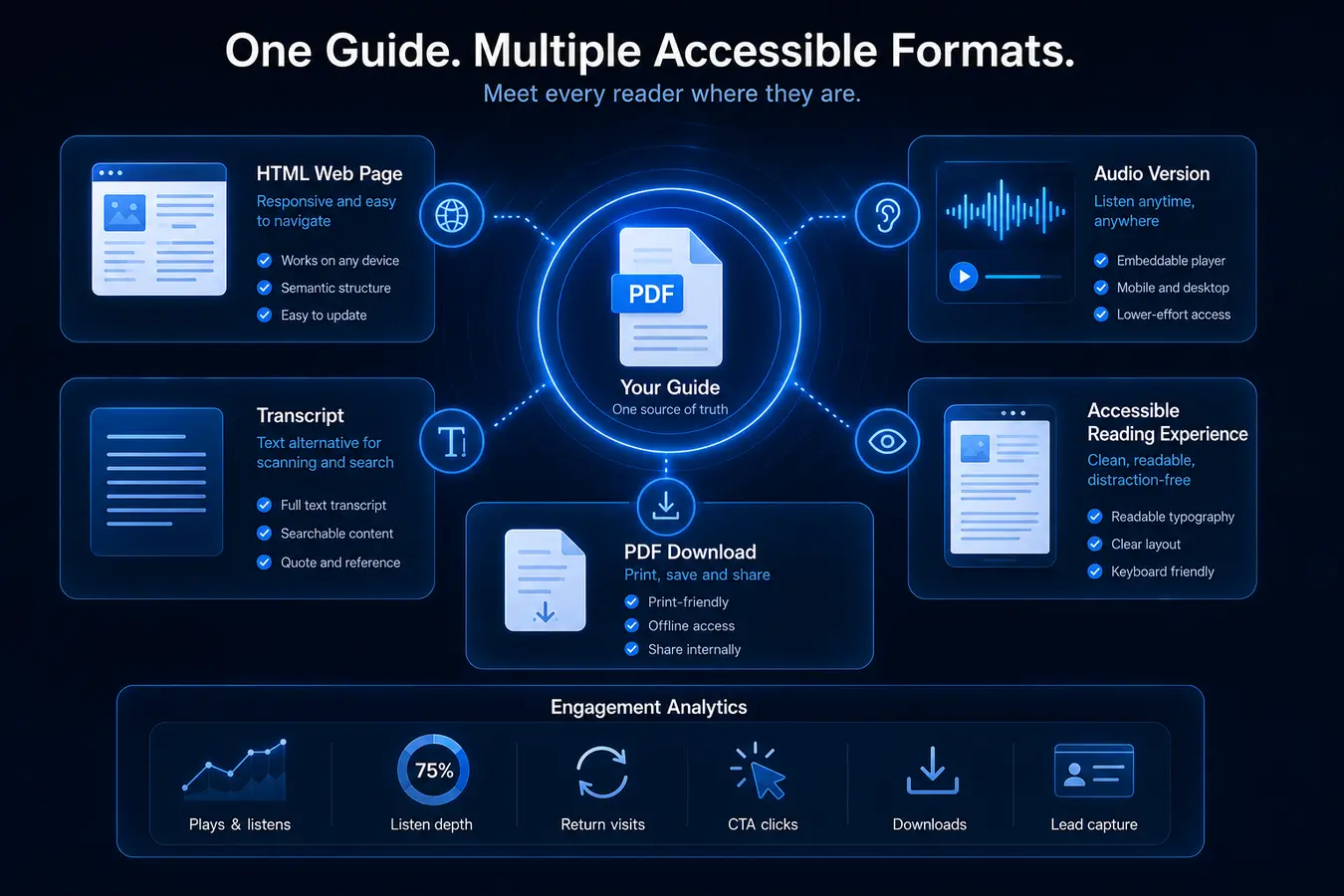
That is why the strongest format stack is usually:
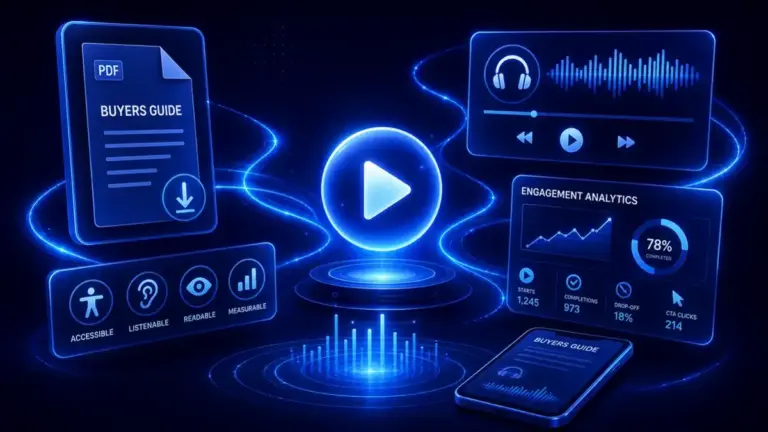
- PDF for download, print, and sharing
- HTML for responsive on-screen reading
- Transcript for scanning, searching, and reference
- Audio for listening and lower-effort consumption
- Analytics to see whether the content was actually consumed
This is where Auripath fits naturally.
If you want the product view, see how Auripath can convert PDF to audio for your website and add an audio player to your website.
Auripath helps turn PDFs, guides, reports, and downloadable resources into audio versions with an embeddable player, optional capture, transcript-friendly pages, and engagement analytics.
The goal is not to replace the PDF.
The goal is to give more people a better way to consume the same resource.
What to measure after improving access
Improving accessibility should not stop at publishing the file.
You should also measure whether people actually use the resource.
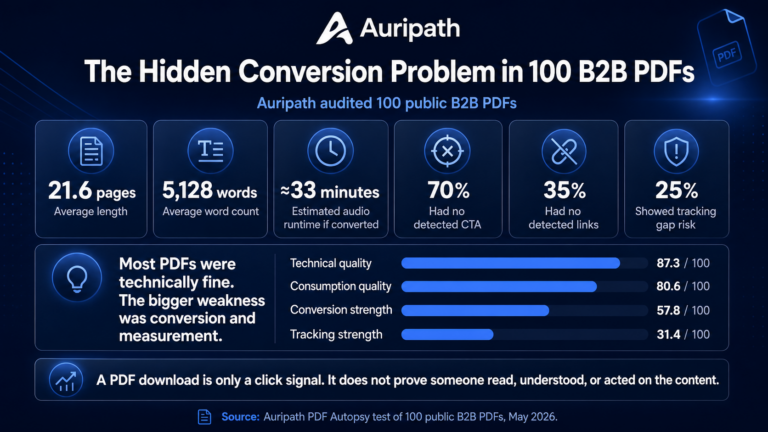
Google Analytics 4 can record a file_download event when someone clicks a link to a PDF. That is useful, but it is still only a click.
A download does not prove the guide was read.
It does not prove the reader understood it.
It does not prove the reader reached the call to action.
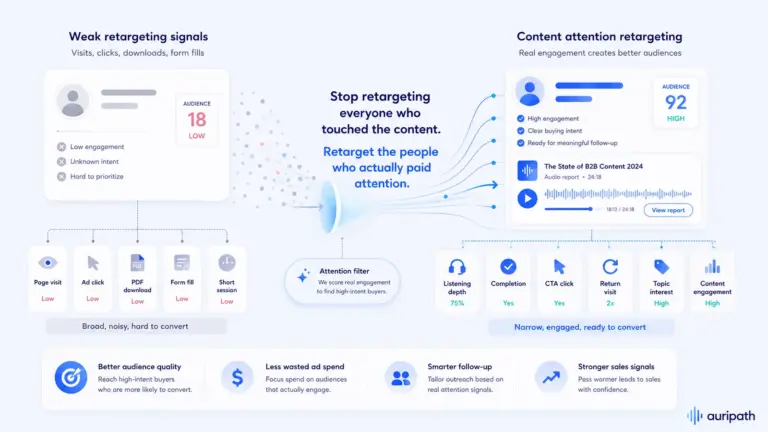
Better engagement signals include:
- Audio starts
- 25%, 50%, 75%, and 100% completion
- Transcript opens
- Return listens
- Drop-off points
- CTA clicks after consumption
- PDF downloads compared with actual starts
That is the difference between knowing someone clicked and knowing someone paid attention.
For more on this measurement problem, read our PDF engagement benchmarks report, or see how audio analytics for website content can show whether people actually consumed a resource.

Frequently asked questions
Can a PDF be accessible?
Yes. A PDF can be made accessible, but accessibility is not automatic. It usually requires proper source-document structure, tags, reading order, alt text, labelled forms, language settings, and testing.
Is PDF accessibility the same as WCAG compliance?
Not exactly. WCAG provides accessibility requirements and guidance that can apply to digital content. PDFs also have specific techniques, standards, and tooling, including PDF/UA validation. A good workflow may need both WCAG thinking and PDF-specific checks.
Are tagged PDFs automatically accessible?
No. Tags are important, but tags alone do not guarantee a good experience. The tags need to be correct, the reading order needs to make sense, images need useful alternatives, and forms need proper labels.
Should I always replace PDFs with HTML?
No. PDFs still make sense for some use cases. But if the content is mainly being read online, an HTML version is often easier to use, easier to make accessible, and easier to measure.
Does adding audio make a PDF accessible?
Audio can improve access for some users, but it is not a complete accessibility solution. It works best alongside a properly structured document, HTML, transcript, and accessible player controls.
What is the fastest way to test a PDF?
Start with simple checks: can you select the text, navigate by headings, tab through links and fields, understand images without seeing them, and read it comfortably on a phone? Then use a PDF accessibility checker and, where possible, test with a screen reader.
The bottom line
Your PDF might look finished.
But that does not mean it is accessible.
Accessibility is not just about avoiding obvious errors. It is about making sure more people can read, navigate, understand, listen to, and act on your content.
If your guide matters, do not let the PDF carry the whole experience alone.
Keep the PDF where it is useful.
Improve its structure.
Add HTML where possible.
Offer transcript and audio where useful.
And measure real engagement instead of treating a download as proof of attention.
The goal is simple: make your guide easier for more people to use.
That is better for accessibility.
It is better for mobile readers.
And it is better for marketing teams that want to know whether their content is actually working.
Keep the PDF. Add a better way to use it.
Auripath turns PDFs, guides, reports, and downloadable resources into audio versions with an embeddable player, optional capture, and engagement analytics.
See how one PDF becomes a more accessible listening experience
Further reading
- Why PDFs fail on mobile and exclude buyers
- Run a PDF Autopsy on your own guide
- GOV.UK: Publishing accessible documents
- NHS service manual: PDFs and other non-HTML documents
- W3C: Web Content Accessibility Guidelines 2.2
- W3C: PDF techniques for WCAG
- Section508.gov: Create accessible PDFs
- Adobe: Create and verify PDF accessibility
- WebAIM Million accessibility report
- GOV.UK: Accessible communication formats
- Google Analytics: Enhanced measurement events

Get the free audio ebook for better B2B follow-up.
Learn how to turn PDF downloads, listening behavior, and CTA clicks into stronger sales conversations.